Overview
- Client:
- Deliverable:
- Year:
- Software:
- Instructor
- A menu icon that is modular and reusable
- 2023
- HTML | CSS | JavaScript
The Problem
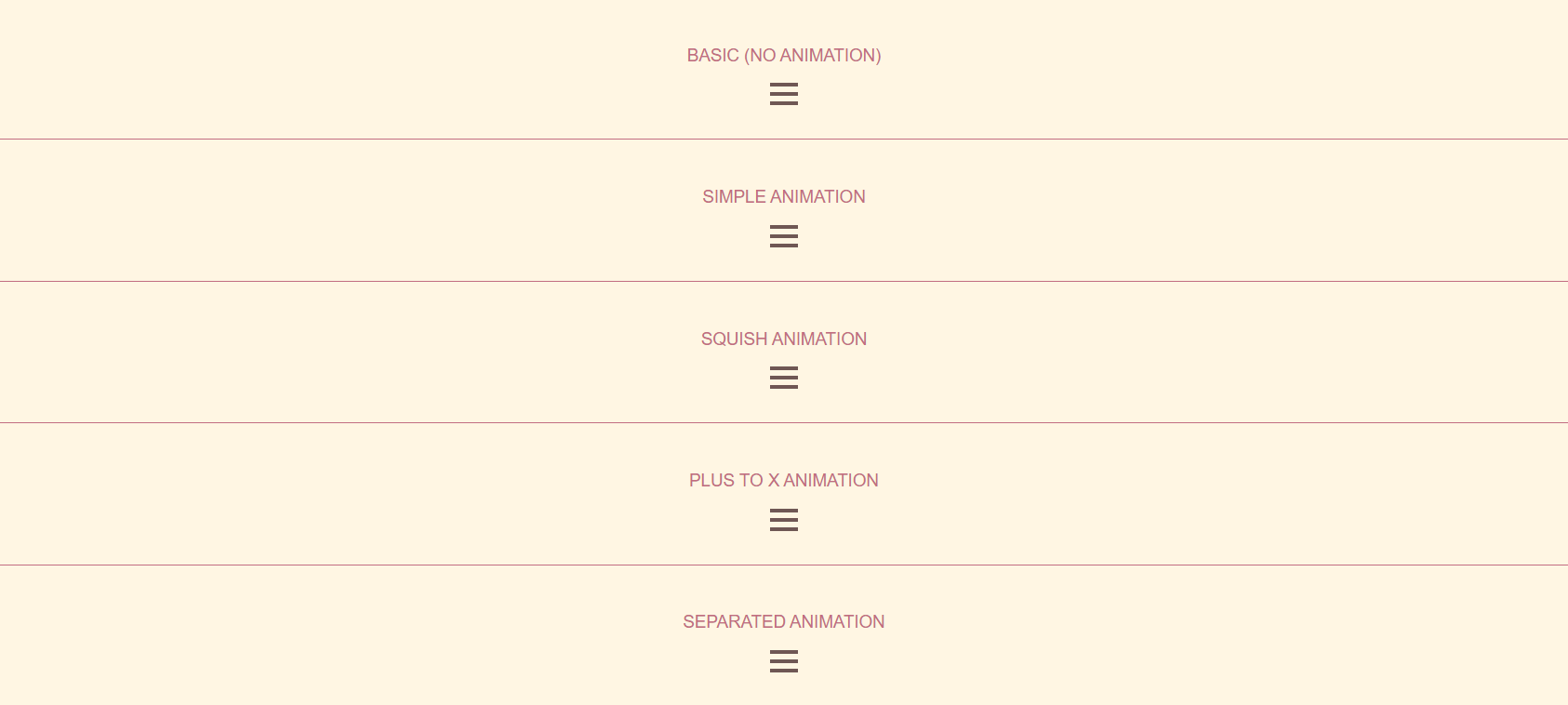
Creating a 3-bar navigation icon may seem like a simple task, but there are multiple ways to implement it on your website. I opted to provide a straightforward method by offering code that is modular and reusable for your own projects. I utilized the details/summary HTML element to create an overlay menu without the need for JavaScript. After finishing the examples, I copied and pasted my HTML and CSS code into a mockup, then incorporated JavaScript to demonstrate how effortlessly you can add this feature to your projects.
Approach
Humble Beginnings
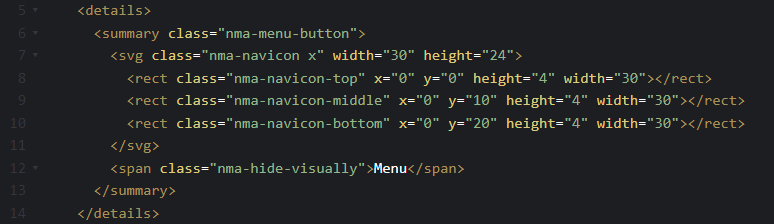
I began by creating a basic menu icon without any animations, but would still effectively open and close an overlay navigation menu. This was achieved within the "summary" element using an svg.
Simple Steps
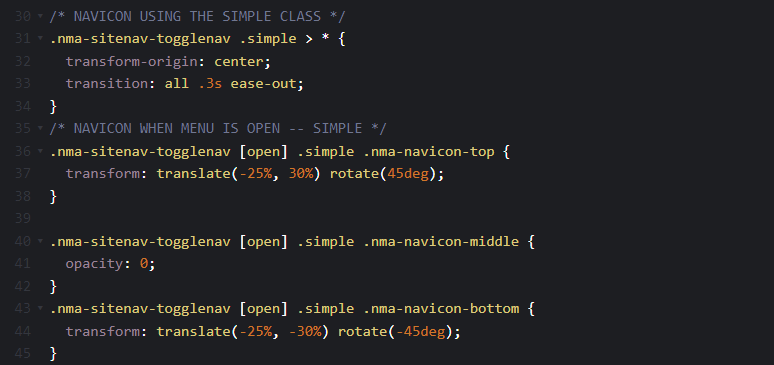
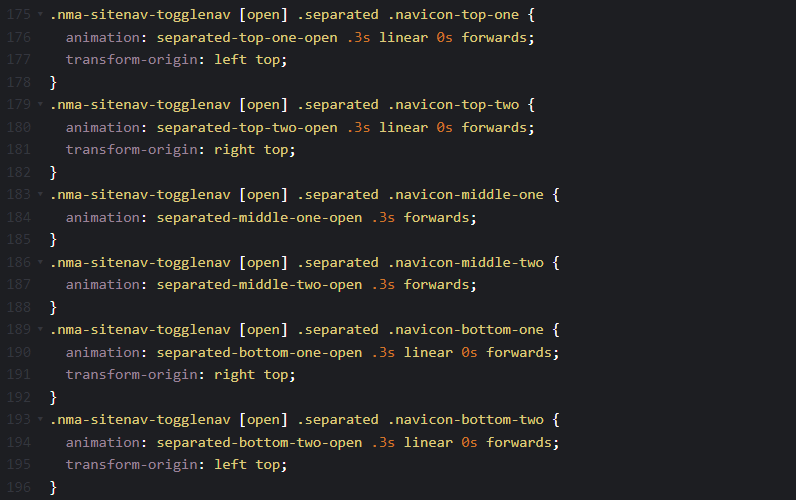
After creating the base for the menu icon I needed to learn how to select each svg element for it's open and closing animations. This was done using the [open] selector. I also learned that using the "transform-origin" property would later assist with easily changing the animation keyframes.
Keyframes In Action
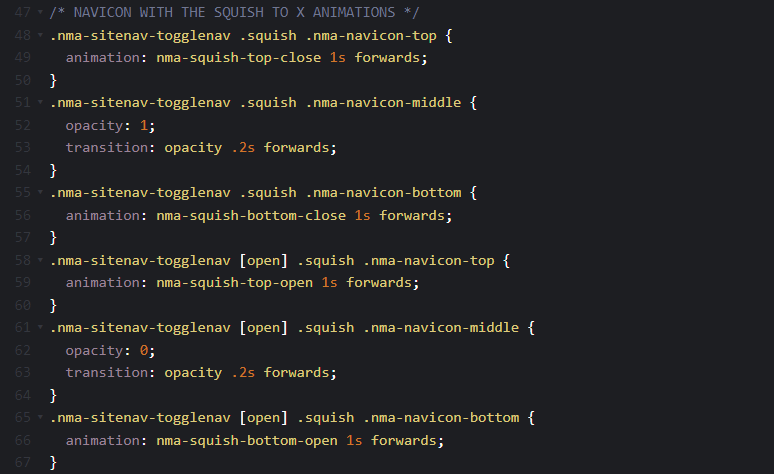
Building on the first two steps I felt more confident in creating keyframe animations for more eye-catching effects when clicking on the menu icon. I started with a simple "squish" animation that brought all rectangles to the center and opening into the "x" and then reversed the process, transforming the "x" back into the three bars.
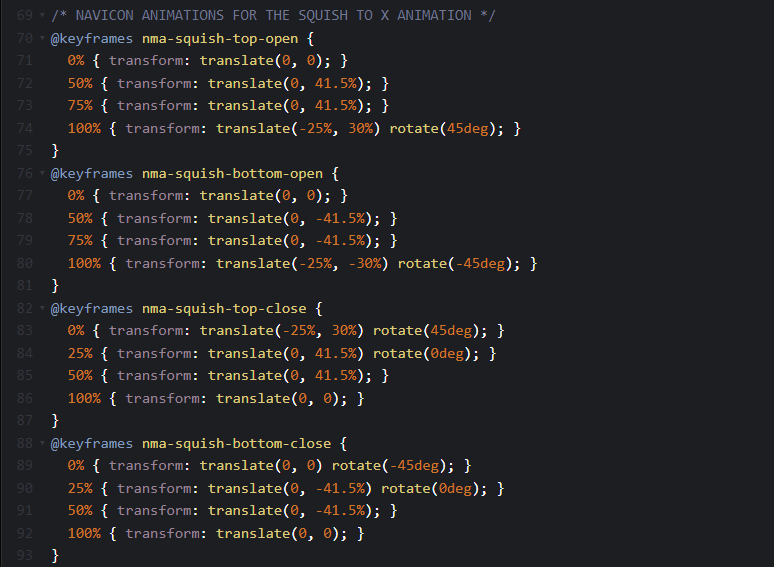
Continuing the Journey
For my next attempt at keyframe animations, I incorporated a series of additional steps to create a more intricate and visually engaging effect. This involved creating a plus sign that rotates into the "x" and, again, reversed the process back into the three bars. This proved to be a much more difficult task as I needed to understand th4e timing at each percentage within the keyframe. Finding the right balance was crucial, ensuring that the rotation into the "x" was neither too quick to preserve the effect, nor too slow to maintain its visual appeal.
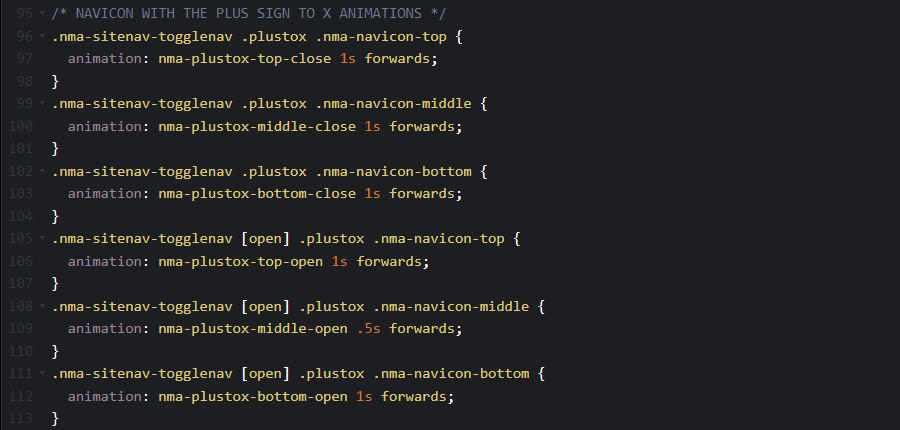
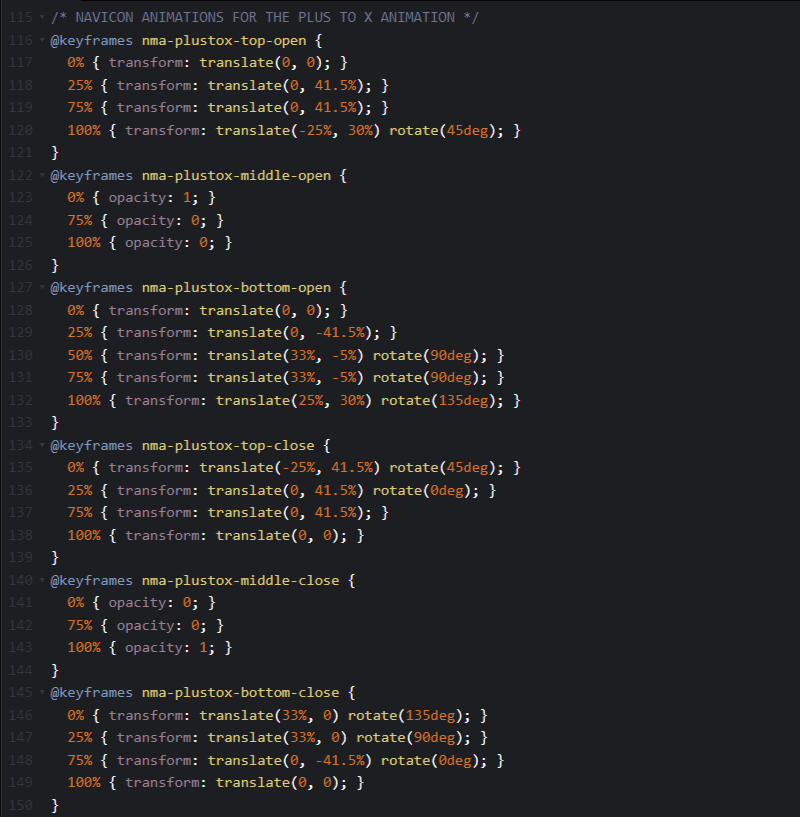
From Foundations to Flourish
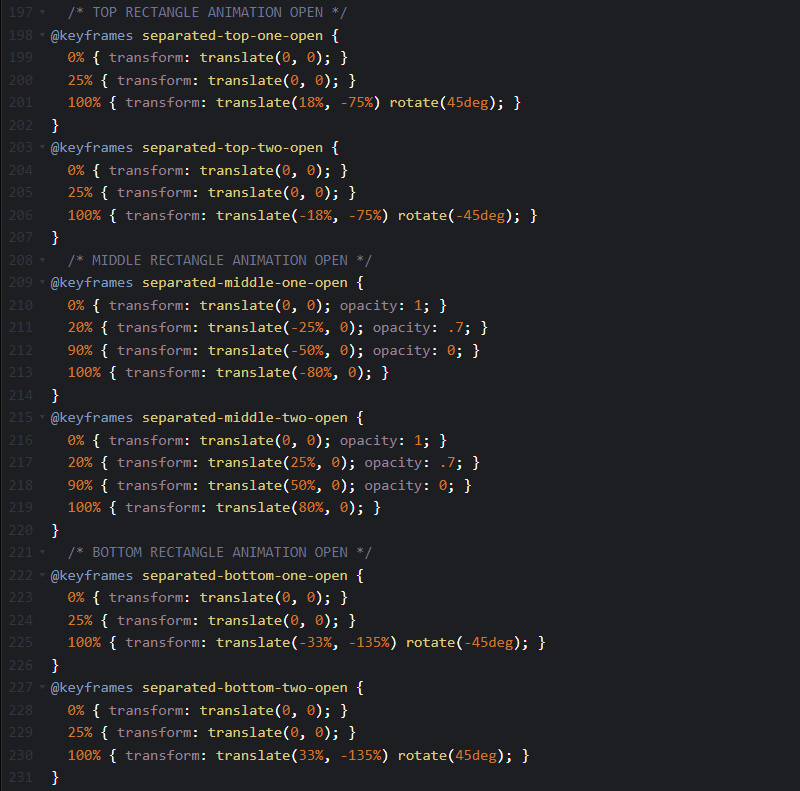
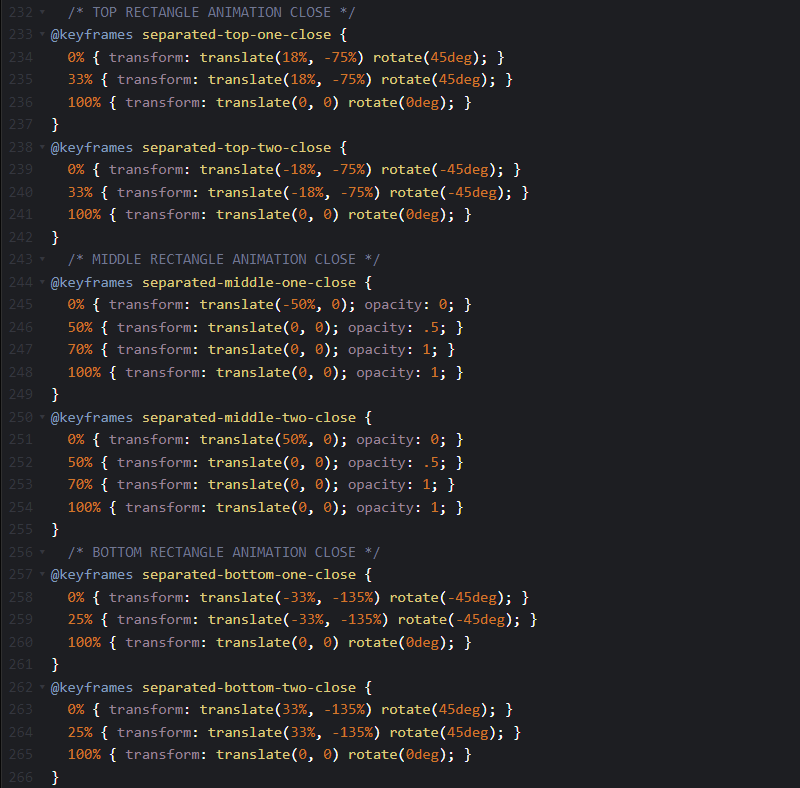
In my final exploration for this project, I created a more involved menu icon using six rectangles within the svg. This demanded meticulous attention to detail and a considerable amount of patience. I wanted this menu icon to have the top and bottom bars tilt towards the center, forming the "x", while the center bar splits in half and fades outwards. The first few iterations of this icon did not have the transform-origin selector, so each keyframe had been different. This meant that reversing the animation had completely different translate and rotation properties. After learning that I could specify the top left and top right of each rectangle, I could easily animate the open and close animations.
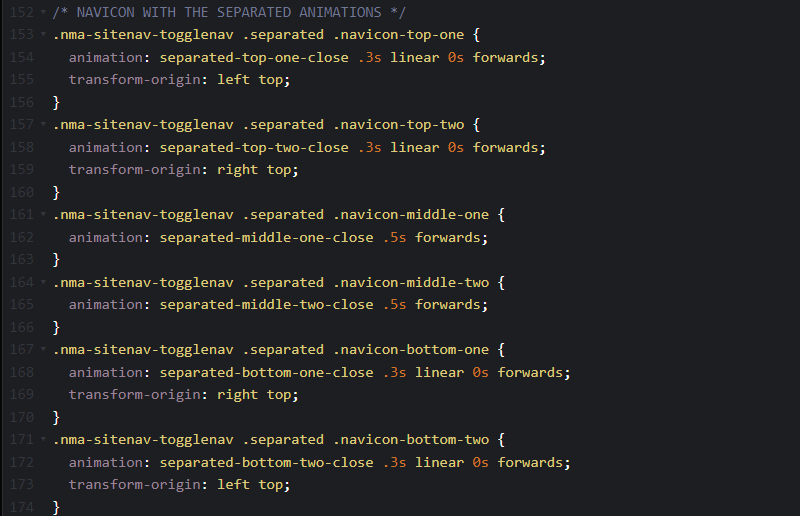
Conclusion
The Finale
Having completed a variety of menu icons and a range of animations, my last objective was to ensure their semaless integration into websites for potential users. To achieve this, I conducted tests with JavaScript to understand the process of applying the code used to generate the icon. I initially utilized CodePens and eventually learned to select the "open" and "closed" navigation states to assign the animations. After doing this I created a mockup of the current NMA website and implemented my menu icon. You can view all the CodePens and website mockup using the links below.
See the Pen nma-sitenav-togglenav with details summary (all animations) by Mari Sumida Miyashiro (@marisumidamiyashiro) on CodePen.